 Atlas Intelligence9/8/2026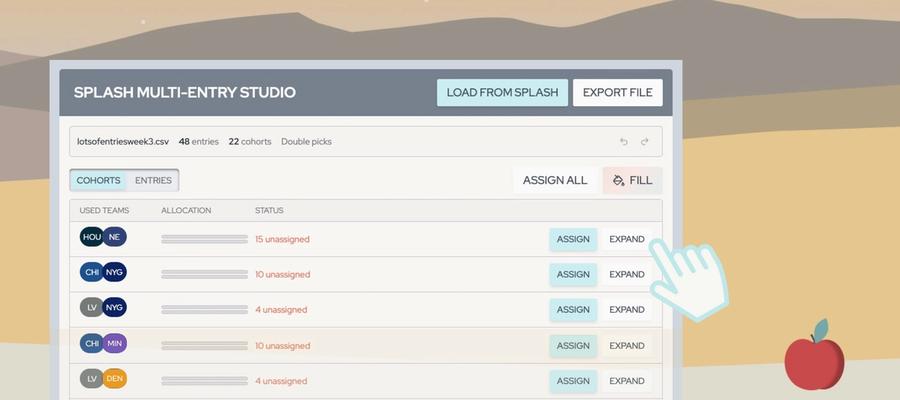
If you’re playing a lot of entries on Splash, you probably don’t want to edit them all one by one.
That gets old fast when you have 150 entries in one contest, and it gets even worse if you’re playing multiple contests with hundreds of entries across them.
Splash has a bulk edit feature that lets you update an entire contest at once by uploading a spreadsheet. The catch is that you still need to fill that spreadsheet out correctly.
There are three main ways to do that:
- Edit the spreadsheet manually
- Use AI to edit it for you
- Use the Survivor Atlas Multi-Entry Studio
Here’s how each one works.
Inside your Splash contest, go to Edit Entries, select the week you want to update, and download the bulk edit file.
Open that file in Google Sheets, Excel, or another spreadsheet program.
Every row represents a different entry. You’ll see information like the entry name, contest ID, entry ID, and columns for picks that have already been made.
For the current week, the important column is usually Pick 1. During double-pick weeks, you’ll have both a Pick 1 and Pick 2 column.
One important detail: Splash doesn’t want the team name in those cells.
You can’t just type:
Chargers
Chargers
Chargers
Chargers
Instead, every team has its own ID, and the spreadsheet needs that ID.
That’s where the first method starts to get a little annoying.
The most basic option is to work directly in the spreadsheet.
Find the team you want in Splash’s team list, locate its ID, and enter that ID into the appropriate pick column. From there, you can copy or drag it across however many entries you want.
It works.
If you’re only changing a handful of entries, it may be all you need.
But it’s not especially pleasant when you’re managing a large portfolio. Team IDs aren’t memorable, and once you start mixing several teams across 100 or 150 entries, the spreadsheet becomes much harder to work with.
This is the caveman method.
Functional, but not exactly fun.
The next option is to let AI handle the spreadsheet work.
Upload the Splash file to ChatGPT or your preferred AI tool and tell it what allocation you want.
For example:
- 80% Raiders
- 20% Bengals
The AI can read the file, find the relevant team IDs, fill the entries, and give you a new file to upload back to Splash.
That’s much easier than manually finding and entering every ID.
And in many cases, it works great.
The downside is that AI isn’t foolproof.
It can misunderstand an instruction, alter something you didn’t expect, or simply make a mistake. If you have 150 entries, the last thing you want is to manually inspect every row just to make sure the automated process worked correctly.
So AI is a useful shortcut, but you still have to be comfortable trusting the output.
The third option is the Splash Multi-Entry Studio on Survivor Atlas.
You can find it in the Atlas menu or go directly to:
Upload your Splash spreadsheet and Atlas turns it into an interface designed specifically for managing Survivor entries.
Instead of editing IDs in cells, you can work with teams directly.
If you want every entry on the same team, you can fill the entire file at once.
Choose a team, decide whether you want to fill only empty entries or overwrite existing selections, and apply it.
The Studio immediately shows you the resulting allocation.
If you change your mind, you can undo it.
You can also split entries between several teams.
Maybe you want:
- 75 Raiders
- 30 Bengals
- 5 Titans
You can set those allocations directly and apply them to the portfolio.
You can also edit individual entries when you want to make a specific exception.
This becomes especially useful later in the season.
After a few weeks, your entries no longer all look the same.
One group may have used Dallas and the Chargers.
Another may have used Jacksonville and San Francisco.
Another may have an entirely different team history.
Atlas automatically groups entries into cohorts based on the teams they’ve already used.
That lets you manage similar entries together instead of treating a 100-entry portfolio as one giant list.
You can expand a cohort, see its existing picks, assign new teams to that group, or edit individual entries inside it.
The Studio also handles weeks where two picks are required.
You can assign two-team combinations across your portfolio and see which entries can actually use them.
If an entry has already used Green Bay, for example, Atlas won’t assign Green Bay to that entry again.
Those entries remain unassigned so you can see exactly where another decision is needed.
You can then fill those exceptions manually or give that cohort a different combination.
Once everything looks right, export the completed file from Atlas.
Then head back to Splash, open the bulk edit screen for the correct week, and upload the new file.
Splash processes the spreadsheet and updates the entries.
That’s it.
The Multi-Entry Studio isn’t trying to tell you what teams to pick.
It doesn’t give you strategic advice or decide how much exposure you should have to a team.
It simply makes it easier to execute the plan you already have.
You can always manage a Splash portfolio manually. AI can make that process faster. Atlas gives you an interface built specifically around the problems that come with managing a large number of Survivor entries.
If you’re playing dozens or hundreds of entries, that can save a lot of spreadsheet work.
Check out Survivor contests at Splash Sports

